
✍️ How to set up Collapsible tab?
To create collapsible tabs for additional content in the description section, follow these simple steps:
- Add the block “Collapsible tab”
- From here, you can customize
- Open this tab by default: tick the box to make the tab expand automatically when the page loads.
- Set up the icon: 4 options
-
- Choose your favorite Icon from the drop-down list. Choose "None" if you don't want any icons.
- Find your preferred one in the Icon list, copy and paste its exact name to the “Use another icon” field. (Note: Make sure to choose Icon > "Use another icon" to activate this function.)
- Upload a Custom icon image.
- Add a Custom icon (SVG code). (For assistance with custom SVG code, please contact our support.)
Use secondary background: Tick the box to show the background for the content inside the collapsible tab.
Heading: enter the title of the collapsible tab to describe the content it will contain.
Tab content: Add the content you want to display when the tab is expanded.
Media: Add an image or a video inside the tab, shown above or below the tab content. See How to add an image or video to a collapsible tab below.
Result:

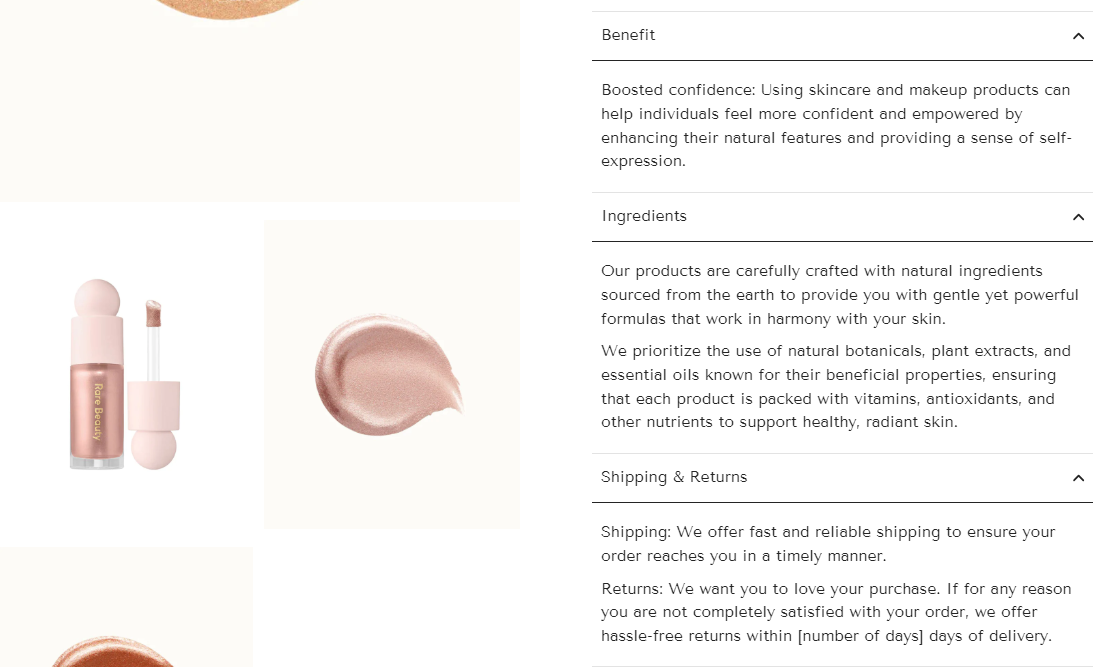
Tips: You can also utilize metafields to dynamically populate content based on the product, providing more personalized information.
✍️ How to add an image or video to a collapsible tab?
Aa collapsible tab can show an image or a video alongside its text, for example a size chart image or a short care video. This works in the Collapsible tab block of the Product information, Quick view, and Featured product sections.
Step 1:
Click on the Collapsible tab block to open its settings, then scroll to the Media settings group.
Step 2:
Set Media type to Image or Video. The default is None, which shows no media and hides all media settings.
Step 3:
Set up the media, depending on the type you chose:
- Image: Upload or choose the image to show, then adjust Image position, Image ratio, or edge style.
-
Video: Upload or embed video from URL, then set Video position and Video ratio as you wish.
Step 4:
Click Save when done.

